The Font Awesome Plugin for Figma is Awesome
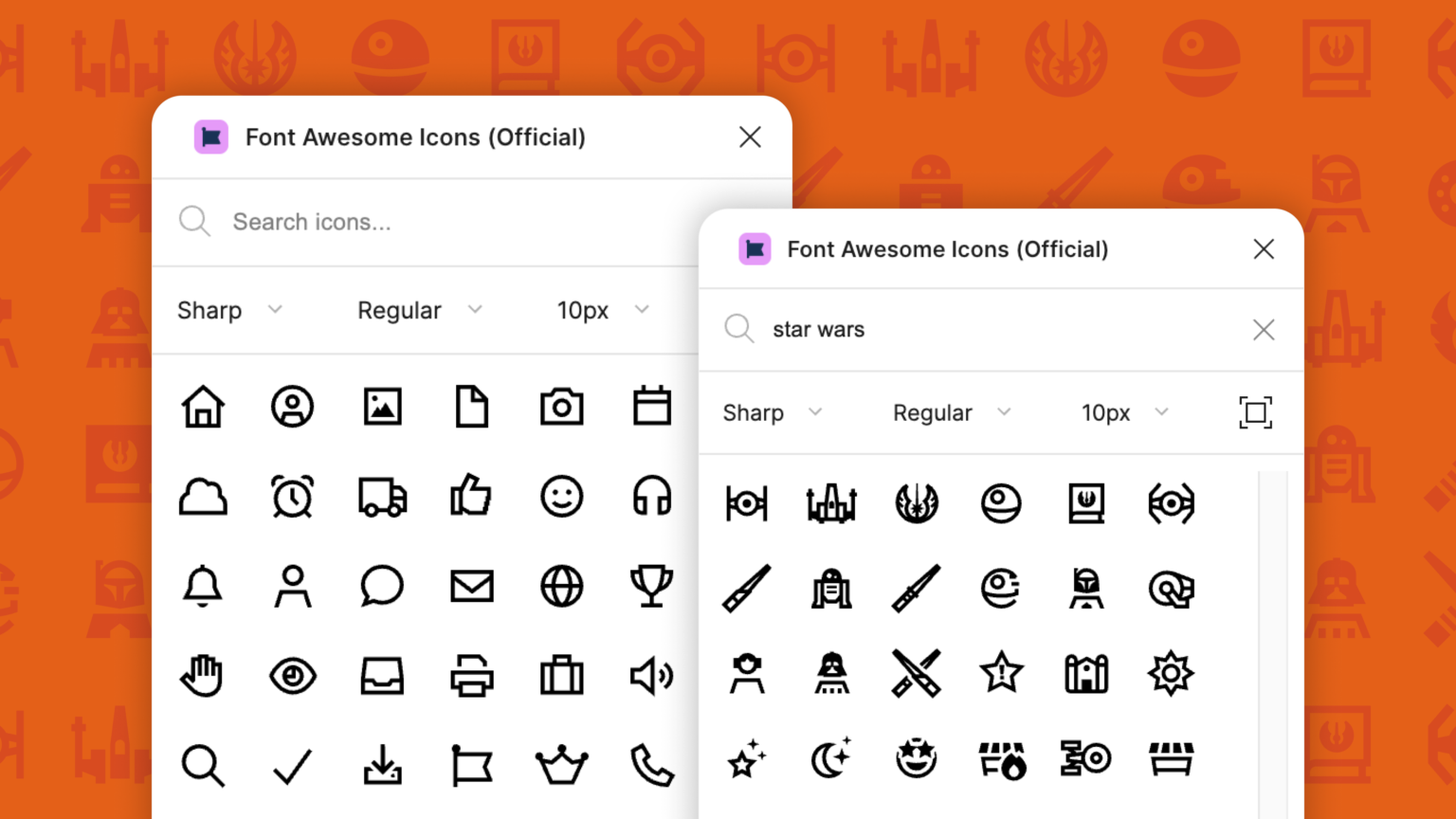
If you’re still hunting for icons by opening a browser, searching Google, downloading an SVG and dragging it into Figma or copying and pasting the glyph code… Stop.
It’s a familiar scenario for designers… you’re knee deep in a new design, everything is clicking, and your momentum is building. Then, you realize you need a “trash can” icon. Suddenly, you’re four tabs deep in Chrome, your Downloads folder is a graveyard of icon_final_v2.svg files, and your creative momentum just hit a brick wall.
The Font Awesome Icons (Official) plugin for Figma takes all that pain away. It is one of the best tools to improve your workflow. Here is why it’s a permanent tool for us:
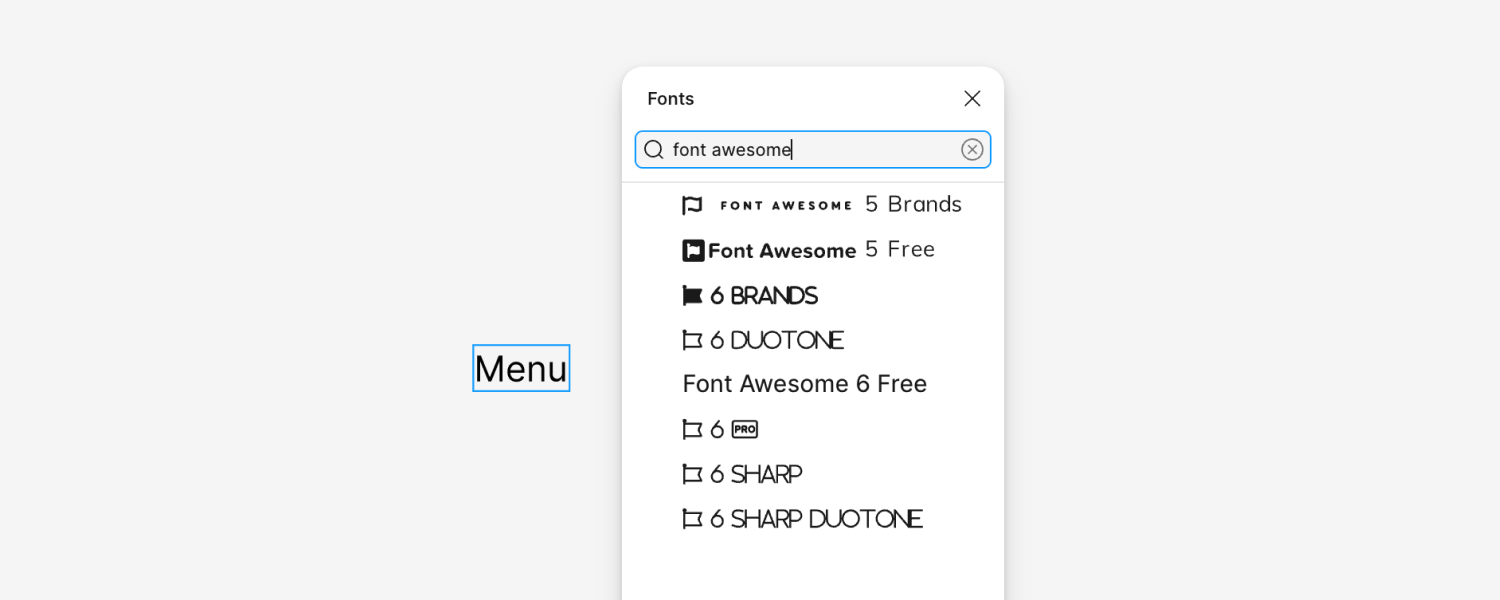
1. No more struggling with the font
Forget the desktop font struggle. Installing .otf files and restarting Figma only to see a dreaded “X” in a box stopping you in your tracks leaving you to having to troubleshoot. And worse, if your teammate doesn’t have the same exact version, the whole handoff breaks.
The plugin skips the drama by dropping a clean vector path icon directly onto your canvas. No more typing characters, no version conflicts, and no missing font errors. It just works.
2. The “One-Stop Shop” experience
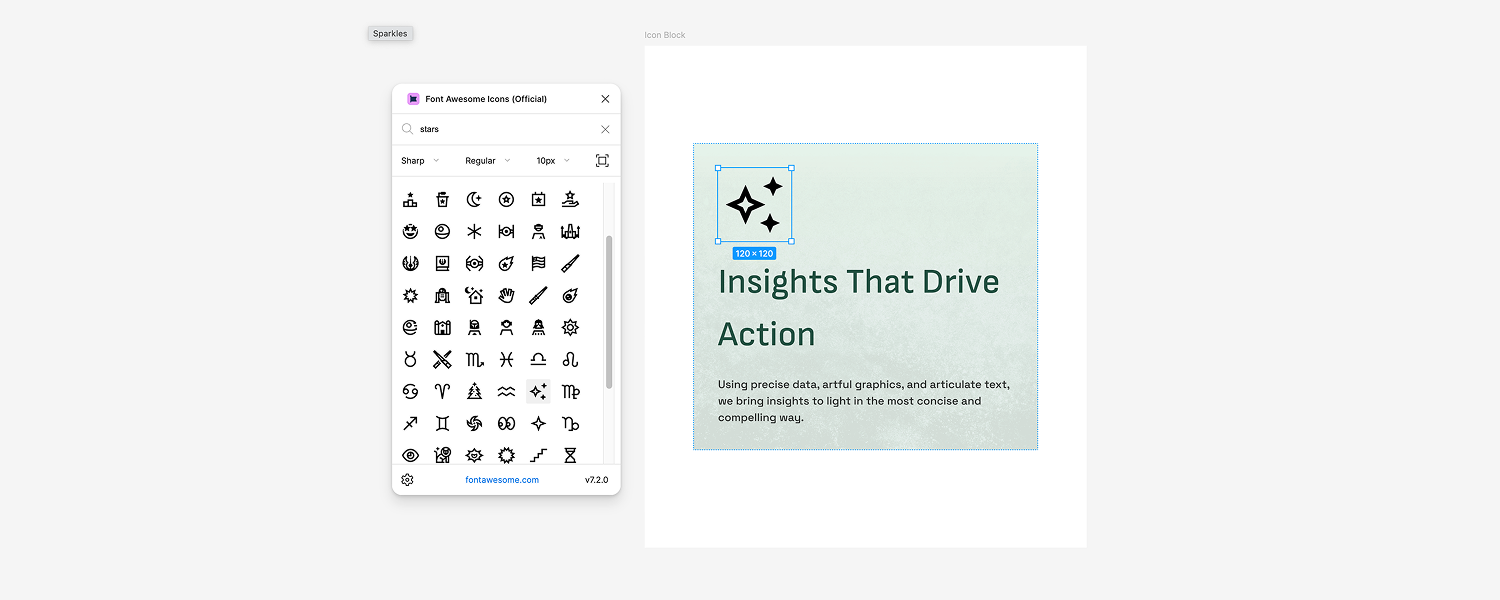
Every time you leave Figma to find an icon, your productivity takes a hit. The plugin brings the entire Font Awesome library directly into your canvas without leaving.
3. Every style, every weight
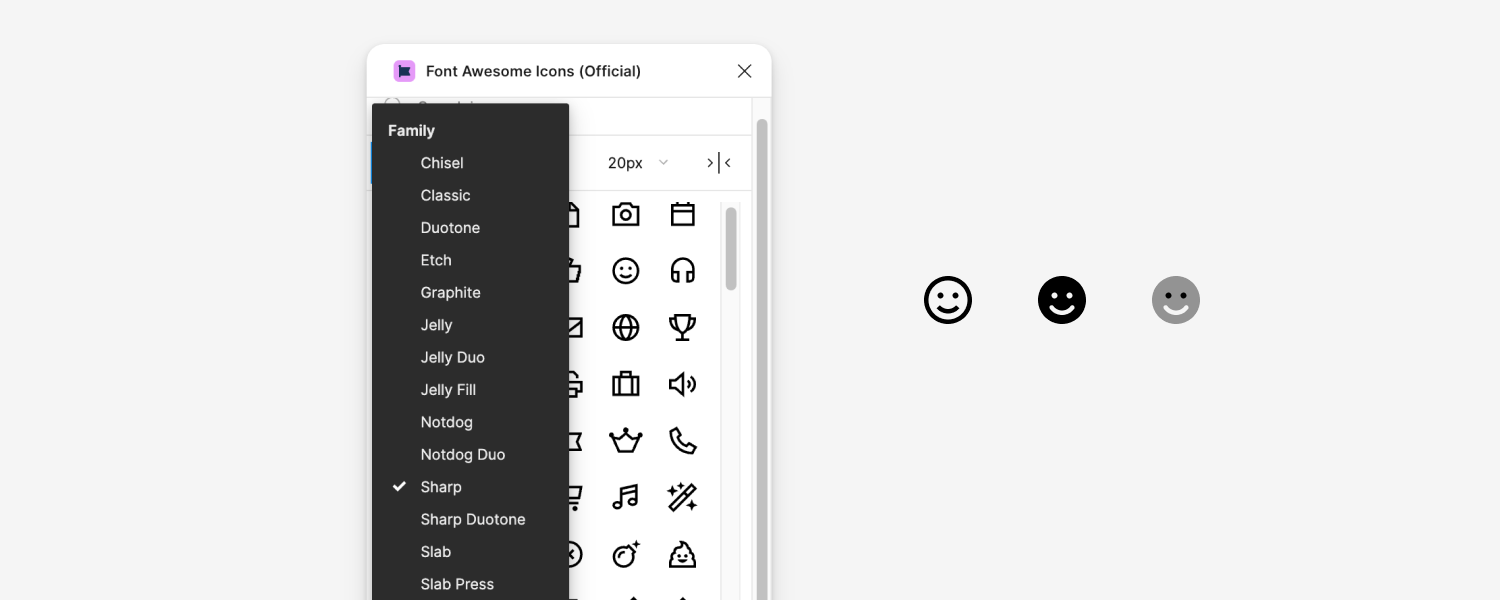
Want to see if a Duotone icon looks better than a Solid one? In the old days, that meant two separate downloads.
With the plugin, you can toggle between Classic, Duotone, Chisel, Sharp styles, and more in seconds. You can also filter by weight, Thin, Light, Regular, and Bold, to match your design system’s visual language perfectly.
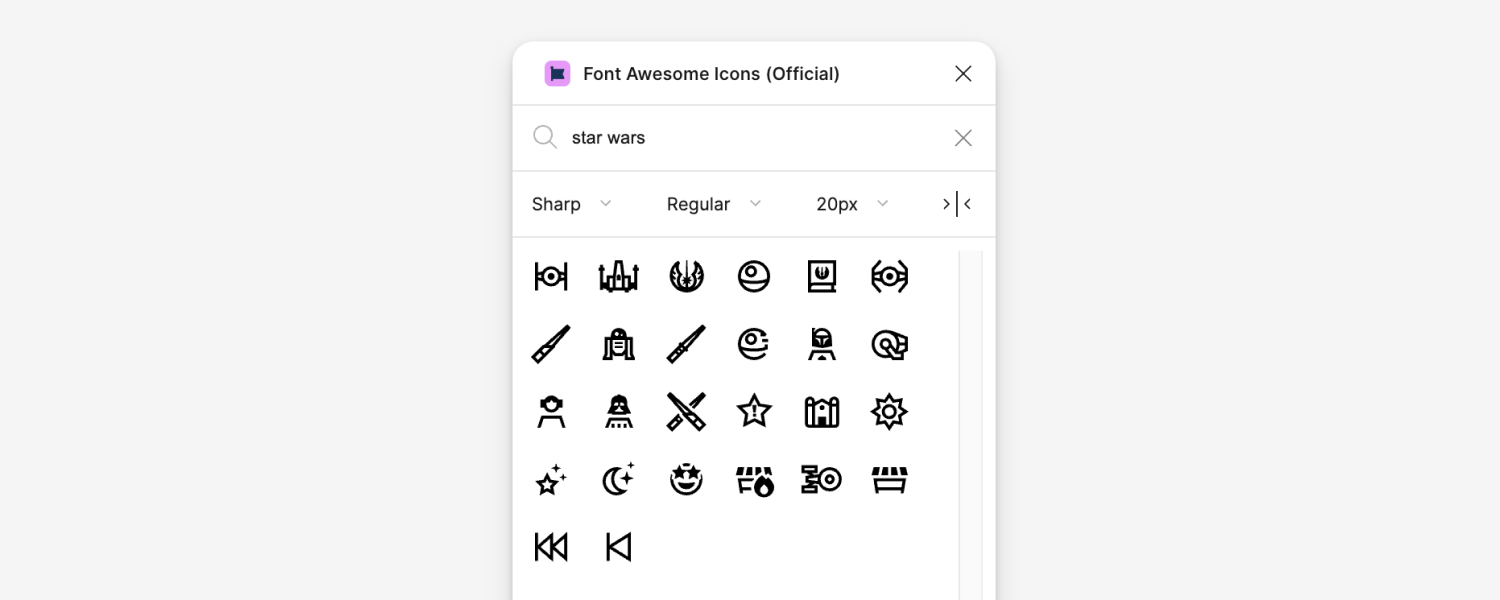
4. Search at warp speed
Font Awesome has so many icons, maybe too many… To help the searching process there is a built in search feature. Whether you’re looking for a “hamburger menu”, a “credit card”, or something oddly specific like a Tie Fighter from Star Wars, you’ll find it right away.
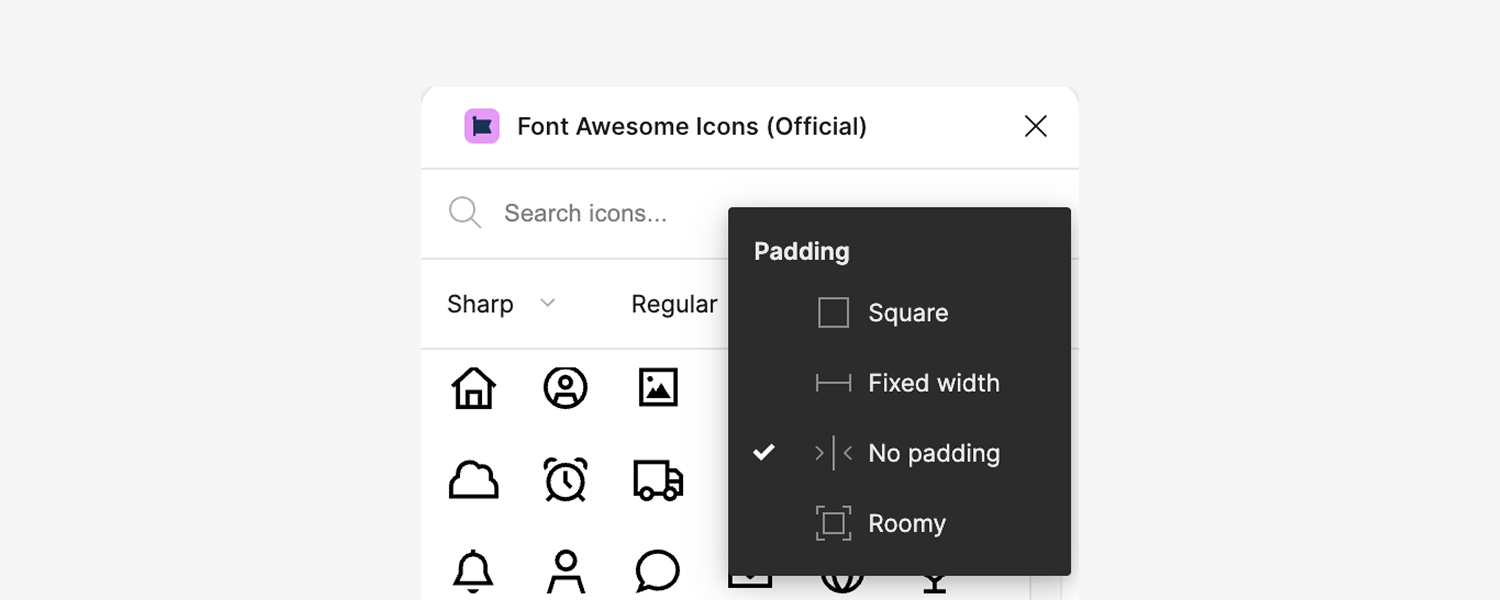
5. Perfect fit, first time
This feature is my favorite. Usually, dragging an SVG into Figma results in a random size and no container, forcing you to manually resize everything so your Auto Layout doesn’t break.
The plugin lets you set your icon size and frame padding before you drop the icon. Need a 24px icon inside a 40px frame? Done. No more manually resizing icons.
Final thoughts
The Font Awesome Figma plugin is one of the best “work smarter, not harder” tools available. By cutting out the “search, download, drag, resize” loop and finally killing off the unreliable desktop font, you and your team can save a lot of time and headaches.
It’s faster, it’s cleaner, and it makes designing feel like less of a chore. If you haven’t installed it yet, do yourself a favor and head over to the plugin’s official Figma Community page!